Thumbnail Maker
- 4.7
- Rating
- 1.00M
- Installs
- Free
- Price
 Analysis by App-foxy
I tried Thumbnail Maker as a practical art and design app for creating YouTube graphics, and my first impression was straightforward: it is aimed at people who want a usable thumbnail without opening a full desktop design suite. The focus is narrow, which is helpful. Instead of asking me to build an entire visual identity from a blank canvas, it puts the thumbnail task at the center and keeps the learning curve approachable.
That simplicity is the main reason I would recommend it to a friend who is starting a channel, posting irregularly, or making videos from a phone. It is not the kind of tool I would choose for a detailed branding project with demanding layout rules, but it can make the difference between uploading a video with an unfinished image and publishing something that looks deliberately prepared.
What the app feels like in everyday use
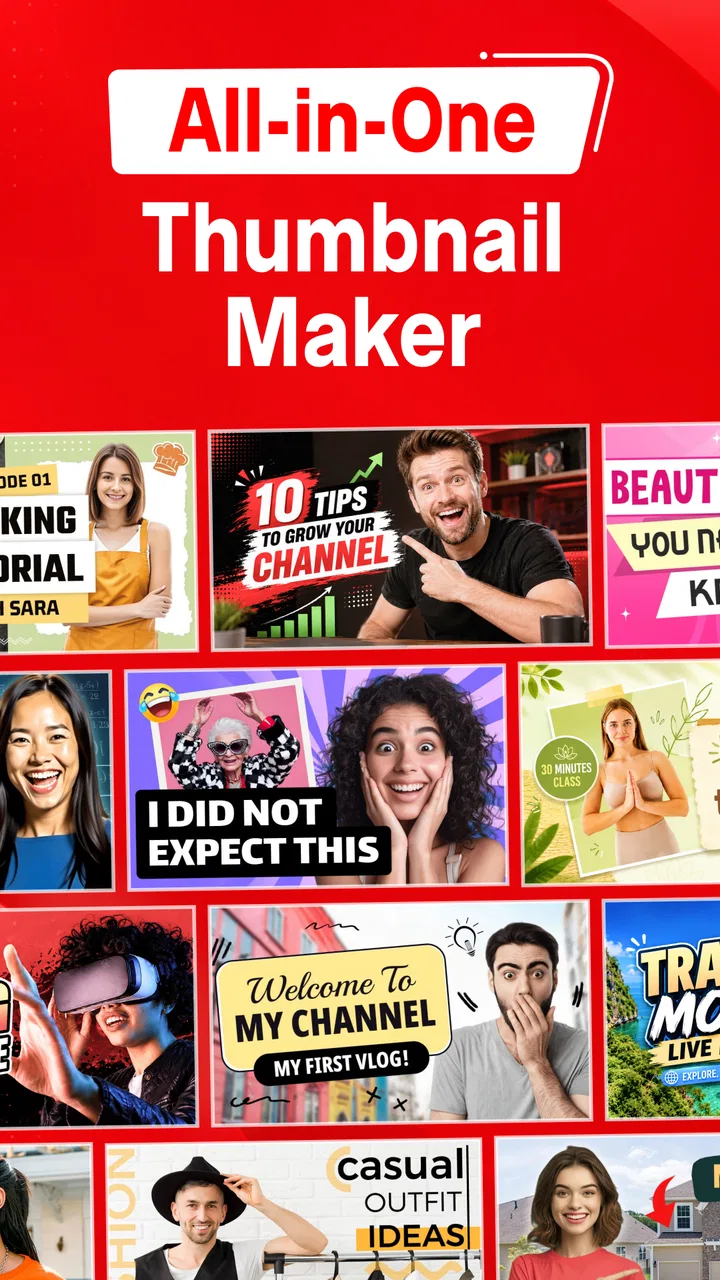
The most useful way to think about this app is as a fast visual starting point. I would open it when I already knew the subject of a video but did not want to spend a long time arranging text, images, and decorative elements manually. A creator covering a new recipe, a gaming session, a review, or a short tutorial can use that focused workflow to get from idea to thumbnail more quickly than with a general drawing application.
You May Also Like

 Blood Strike: 2.5 Anniversary
Blood Strike’s Loadouts Turn Every Drop Into a Tactical Gamble
A close look at Blood Strike’s custom loadouts: how fast access to signature weapons reshapes its battle royale rhythm, rewards preparation, and narrows the gap between fights.

 Pandora - Music & Podcasts
Pandora’s Music Is Easy to Start, but Harder to Recover
Pandora’s strength is its low-effort path from a seed to a station. Its weak spot is how much confidence it asks you to place in connection, setup, and quiet recovery.

 8 Ball Pool
 Is Built on Rivalries, Rematches, and Routine
A close look at the rivalries, rematches, shared routines, and unanswered safety questions that turn a quick pool match into a persistent mobile community.

 Samsung Music
’s Quiet Strength Is Playing What You Already Own
Its reach comes less from spectacle than from dependable access to a personal library. That simplicity is both the app’s strongest retention engine and its ceiling.

 AccuWeather: Weather Radar
AccuWeather Review: A Quick, Clear Forecast for Everyday Decisions
For everyday plans, the best forecast is the one you can understand quickly. AccuWeather makes rain timing, radar, and local conditions easy to act on, with a few trade-offs.

 Hill Climb Racing
Why Hill Climb Racing Still Turns Crashes Into One More Run
A tiny car, a bumpy hill and one more upgrade: Hill Climb Racing keeps resurfacing because its simple chaos makes every near-miss feel personal.
More From Our News Desk



That does not mean every result will look automatically professional. A template or ready-made design can give the composition direction, but the final quality still depends on the image I choose, the number of words I add, and whether the colors remain readable at a small size. The app helps with the mechanical part of the job; it cannot replace a clear subject or a strong visual decision.
I found the narrow purpose more comfortable than a large, multipurpose editor when speed mattered. General design apps often present many tools that are technically useful but distracting when all I need is one image for a video. Here, the intended outcome is clearer, so a beginner is less likely to wander through unrelated functions.
Why its reputation matters, and what it does not prove
The app has a 4.7 average from around 84 thousand ratings, with roughly 1.1 thousand written reviews, and it has passed the one-million-install mark. Those figures suggest that many people have found the basic idea useful, but I would not treat popularity as a substitute for checking whether the workflow suits me. A large audience can confirm that the concept is approachable without guaranteeing that every template, export, or editing choice will match a particular channel.
It is published by Digital Marketing Tools and is listed as free, which makes trying the basic experience less intimidating. There are in-app purchases ranging from $3.99 to $39.99 per item, so I would pay attention to any screen that presents optional upgrades before confirming a purchase. The free entry point is valuable, but “free” should not be confused with every design element or convenience being permanently included.
From a trust perspective, I prefer that kind of clear separation: install it to judge the workflow, then decide whether additional spending is worthwhile. I would not subscribe or buy anything simply because I wanted to finish one urgent thumbnail. First I would test whether the free tools can produce a result I would actually publish.
Permissions, data choices, and what I would check
When I review a design app, I do not assume that a pleasant interface tells me everything about privacy. The practical questions are more specific: what access does the app request when I bring in a photo, does it explain why that access is needed, and can I continue if I decline something that is not essential? Those are the moments where I would slow down and read the visible system prompt rather than approving every request automatically.
I also keep sensitive images out of casual design experiments. A thumbnail may contain a face, a private room, a client asset, or an unpublished product. Before importing anything valuable, I would look at the permission wording presented on my device and review the app’s current privacy information in the relevant store or settings area. I cannot responsibly treat an editing tool as private merely because it edits images locally from the user’s point of view.
That caution is especially useful for creators who handle other people’s photographs. I would ask for permission before using a customer’s image, avoid placing confidential screenshots into a test project, and keep original files backed up separately. If the app offers a choice between limited and broader media access on the device, I would choose the narrower option that still lets me complete the task.
The same principle applies to notifications, account prompts, and optional purchases. I would decline anything unrelated to making the thumbnail unless I had a clear reason to enable it. A good mobile workflow should leave me able to make deliberate choices instead of turning every convenience into an automatic permission.
A realistic workflow for a small channel
Imagine I have recorded a quick video about repairing a bicycle chain. I would begin by choosing one clear photograph rather than collecting several competing images. Then I would build the thumbnail around a short phrase that explains the benefit, not the entire video title. A few large words are easier to understand on a small screen than a paragraph squeezed into a colorful layout.
Next, I would inspect the image at a reduced size before considering the design finished. This is an important step that many beginners skip. Details that look attractive while editing can disappear when the thumbnail is displayed beside other videos. If the main object is not obvious immediately, I would crop more aggressively or remove decorative elements rather than adding more text.
For a recurring channel, I would keep a simple visual habit: the same general text placement, a familiar accent color, or a consistent treatment for the subject. I would not copy one design unchanged forever, because repetitive thumbnails can become difficult to distinguish. Instead, I would use the app to create a recognizable framework and vary the photograph and headline for each upload.
Before publishing, I would compare the thumbnail with the actual video title. If both say exactly the same thing, one of them may be wasting space. The image should create quick context while the title supplies detail. This small division of labor makes the result feel more intentional than simply placing the title over a background.
Three details that make the workflow better
My first practical tip is to choose the image before choosing the words. Many weak thumbnail designs begin with a long headline and then try to force a photograph into whatever space remains. Starting with the strongest visual subject gives the layout a natural center and makes it easier to decide whether text belongs on the left, right, or above the image.
Second, I would make a duplicate or preserve the original photo before experimenting. A thumbnail editor encourages quick changes, and a crop that works for one video may be unsuitable for another use. Keeping the source image separate protects me from accidentally treating a small thumbnail composition as the only copy of an important photograph.
Third, I would test readability without relying on color alone. Bright text over a bright image can look acceptable in the editor and become unclear in a busy feed. I would look for enough separation between the words and the background, reduce unnecessary decoration, and keep the main phrase short. This is not a hidden button or a premium trick; it is a design decision that makes the app’s tools work harder.
A fourth useful habit is to create two noticeably different versions only when the first composition feels uncertain. Changing a background color slightly is not a meaningful alternative. Moving the subject, shortening the phrase, or using a different image creates a more useful comparison. I would then choose the version that communicates the video fastest, not the one with the most effects.
Where it competes well with familiar alternatives
Compared with a general drawing app, this tool has the advantage of purpose. A blank canvas application may offer more control over brushes, layers, or custom illustration, but that flexibility also means I have to make more decisions before reaching a finished thumbnail. For a creator who wants a quick YouTube image rather than a complete graphic-design project, the focused approach is easier to live with.
Compared with browser-based design platforms, a dedicated mobile app can feel more convenient when I am working directly from photos stored on my phone. I do not need to move the image to a computer just to make a simple cover. The trade-off is that a browser editor may be preferable when I need a large screen, precise alignment, shared brand assets, or a more elaborate multi-page workflow.
Compared with a professional desktop editor, Thumbnail Maker is the less demanding option but also the less suitable one for advanced production. I would choose a full editor for exact brand color management, complex compositing, detailed retouching, or a campaign that needs many carefully coordinated formats. I would choose this app when the priority is finishing a credible thumbnail efficiently.
That distinction matters because a beginner can mistake more controls for better results. In practice, a smaller tool can produce a stronger image when it keeps attention on the subject and message. The app’s value is not that it replaces every alternative; it is that it removes unnecessary complexity for a common, specific task.
Who should use it, and who should pass
I think it is a good match for first-time YouTubers, casual creators, students preparing video projects, and anyone who wants to make a thumbnail without learning a full design package. It is also practical for people who publish from a phone and need to work with photographs already on that device. The free starting point lowers the risk of testing it, while the Everyone content rating makes it broadly approachable for ordinary family and educational use.
I would be more cautious if I were managing a professional channel with strict visual guidelines. If every thumbnail must follow exact measurements, brand rules, and repeatable team processes, a more advanced tool may save time in the long run even if it takes longer to learn. I would also look elsewhere if my work depended on detailed illustration, sophisticated photo manipulation, or collaborative review.
Someone who dislikes optional purchase prompts should take a moment to understand which parts of the experience require payment before investing time in a particular design. The listed purchase range is wide enough that I would not assume one inexpensive unlock covers everything. My approach would be simple: make a test thumbnail, inspect the available choices, and only spend money if the improvement is genuinely useful for my publishing routine.
Device support and practical expectations
The app was released on June 22, 2018, and its current version is 79.0. It requires Android 8.0 or later, so I would check the operating system before recommending it to someone using an older phone. For a current Android user, that requirement is not especially demanding, but compatibility still matters when the app is being installed on an aging family device or a secondary handset.
I would also keep realistic expectations about mobile editing. A phone screen is convenient for quick composition, but it is not ideal for judging every small spacing decision. If the thumbnail is important, I would enlarge the preview, inspect the text edges, and view the finished image outside the editor before uploading it. That extra check catches cramped lettering and distracting details that are easy to miss while tapping through the design.
Storage habits matter as well. I would retain a clean copy of the final image and note which source photo I used, especially if I expect to update the video later. A thumbnail app can help create the visible result, but it should not become the only place where I keep original creative material.
My cautious verdict after using it
Thumbnail Maker succeeds when I treat it as a focused shortcut, not as a replacement for every design tool. It gives a beginner a more approachable route to a YouTube thumbnail and provides enough structure to avoid the intimidating blank page. The strong user response and broad install base make it worth trying, but they do not remove the need to judge the actual editing experience on my own device.
The best reason to install it is speed with a clear purpose. I would use it for regular uploads, quick experiments, and mobile-first projects where a finished thumbnail matters more than advanced control. I would keep my expectations measured, read permission prompts carefully, protect private source images, and check the purchase choices before spending anything.
For me, the final decision is simple. If I needed a fast, accessible way to turn one good image and one short idea into a presentable YouTube graphic, I would give this app a try. If I needed exacting brand management, deep retouching, or a team-oriented production system, I would choose a more powerful alternative instead. That balance is what makes it useful: not a universal answer, but a sensible tool for the creator who values an uncomplicated path from phone photo to publishable thumbnail.
Digital Marketing Tools has kept the product centered on a task many creators face repeatedly. I would recommend starting with a real thumbnail from an upcoming video, checking how much control the free experience gives, and deciding from that result rather than from promises alone. Used with that practical mindset, it can earn a place in a small creator’s everyday workflow without asking the user to become a designer first.
FAQs for Thumbnail Maker
01What is Thumbnail Maker, and what can I use it for?
Thumbnail Maker is a design app for creating eye-catching thumbnails, cover images, posters, banners, and social media graphics. It is especially useful for YouTube videos, Instagram posts, Facebook content, podcasts, and promotional materials. The app usually combines ready-made templates, text tools, backgrounds, stickers, filters, and image editing features so users can create professional-looking designs without advanced graphic design experience.
02Is Thumbnail Maker suitable for beginners without design experience?
Yes, Thumbnail Maker is generally designed with beginners in mind. Its templates and simple editing controls make it possible to start a project quickly, replace sample images, edit text, and adjust colors or layouts with only a few taps. However, users who want highly precise designs may need some time to understand the layering, alignment, cropping, and customization tools available in the editor.
03Does Thumbnail Maker include free templates, fonts, and design elements?
Thumbnail Maker normally provides a selection of free templates, fonts, backgrounds, stickers, and other creative elements, although the exact library can vary between versions. Some advanced designs or premium assets may require a subscription or individual purchase. Before starting a project, it is worth checking whether the template or resource you want is marked as free, because premium content may be locked until payment is completed.
04Can I create thumbnails in different sizes and save them in high quality?
The app is intended to support common thumbnail and social media formats, allowing users to work with preset dimensions or, in some versions, custom canvas sizes. Finished designs can typically be exported as image files such as JPG or PNG. Export quality and available resolution may depend on the selected settings, the device, and whether the account uses free or premium features, so checking the output before publishing is recommended.
05Does Thumbnail Maker require an internet connection or a subscription?
Some basic editing functions may work without a constant internet connection, particularly after the app and its resources have loaded. An internet connection may still be required for downloading templates, accessing cloud content, viewing advertisements, or exporting certain premium designs. Thumbnail Maker may offer optional in-app purchases or subscriptions for removing ads and unlocking additional tools, so review the pricing and renewal terms before confirming a purchase.
Pros
- Simple interface suitable for beginners and quick designs.
- Includes templates that speed up thumbnail creation.
- Text tools offer multiple fonts
- colors
- and styling options.
- Supports custom images for more personalized thumbnails.
- Useful export options for sharing designs on social platforms.
Cons
- Some templates and design elements may require a paid upgrade.
- Free exports may include ads or other usage limitations.
- Advanced editing controls are limited compared with professional tools.
- Large image projects can feel slower on older phones.
- Template quality and variety may vary between categories.

Thumbnail Maker
Gallery